Add a new weapon
Create a new WeaponDef beside a shipped weapon. The player can keep the original and obtain the new weapon as a separate inventory item.
The quick way: the bench
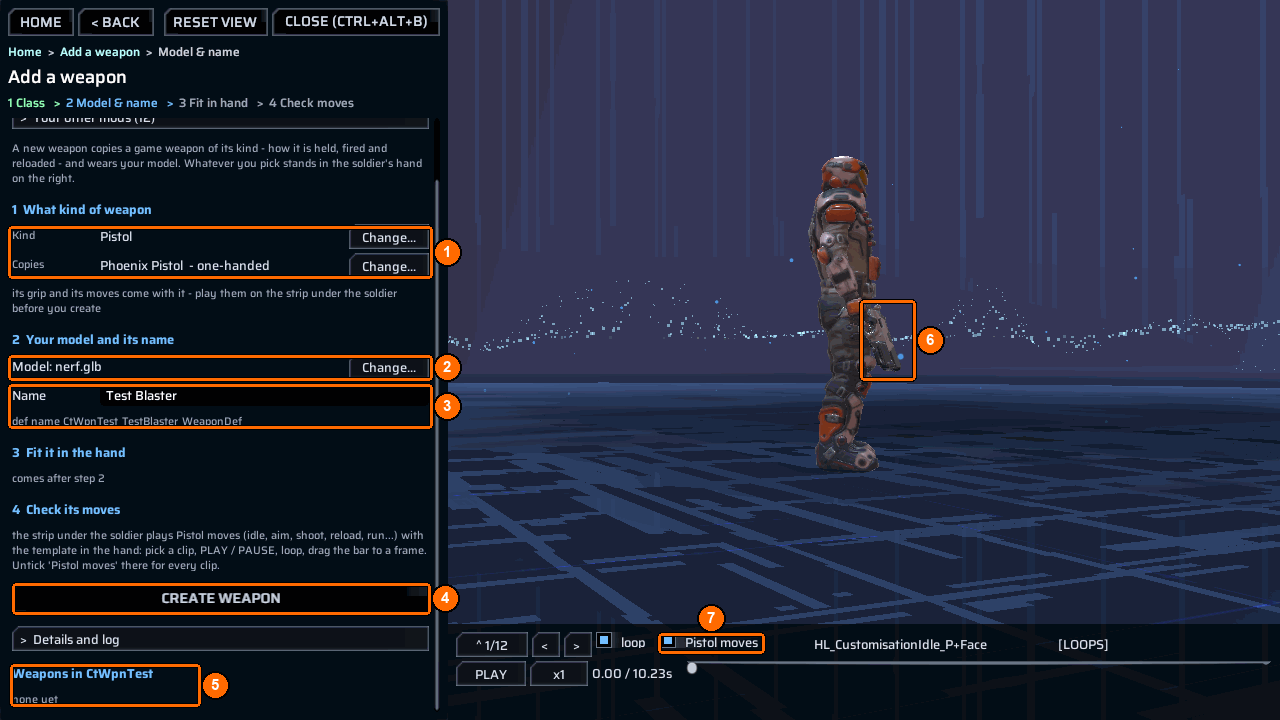
- Open the bench and choose
Add a weapon. Type your mod’s name inYour mod, click a weapon kind, and check the shipped weapon it copies (1). - Pick your
.glb(2), type a name (3), then pressCreate weapon(4). The bench copies the model and writes thepublishandweaponsrows shown below; no DLL is needed. - Press
Next: Build & share, thenBuild & test. Enable the mod inModsand restart the game. - Return to
Add a weapon, click the weapon underWeapons in <mod>(5), pressPut it in the hand, fit it with the sliders, and pressSave fit. Check its moves on the strip under the soldier (7).
Add a weapon walks through every step with screenshots. The steps below are the manual way to make the same weapon, and the way to add a DLL of your own.
You need
- ContentTool installed and enabled.
- A shipped
WeaponDefof the same weapon class to clone. - A fixed, unique GUID for each new weapon.
- Either no DLL at all (
"AssemblyName": ""): ContentTool then builds the mod’sweaponsrows when the mod is enabled. Or your own DLL, which must callWeaponBuild.Builditself; follow Build a behaviour DLL. The steps below use a DLL. - For a new model, a GLB under
Content\Models, a published key, and either"fit": "auto"or a declared"shoot"socket.aimandshellare optional. - A new campaign if you use
countandclipsto seed starting storage.
Folder layout
MyAddedWeapon\
  meta.json
  ppcontent.json
  MyAddedWeapon.csproj
  src\
    MyAddedWeaponMain.cs          <- calls WeaponBuild.Build
  Content\
    Models\
      ar181.glb                   <- optional new prefab
  Dist\
    MyAddedWeapon.bundle          <- created by the bake
  bin\Release\MyAddedWeapon\
    MyAddedWeapon.dll             <- created by the DLL build
Steps
- Find an exact donor name in the game console:
Choose a donor of the same class so its hold and fire actions suit your weapon.
- Create
meta.json:
{
  "ID": "example.myaddedweapon",
  "AssemblyName": "MyAddedWeapon.dll",
  "Version": "1.0.0",
  "Name": [{ "Key": "English", "Value": "My added weapon" }],
  "Dependencies": ["com.morgott.ContentTool"]
}
- Put
ar181.glbdirectly underContent\Models. Createppcontent.json:
{
  "id": "example.myaddedweapon",
  "bundle": "MyAddedWeapon.bundle",
  "publish": [
    {
      "key": "8f924c3a6d7e4b22a5f149b3cd882001",
      "asset": "models/ar181",
      "type": "GameObject",
      "deps": "defaultlocalgroup_unitybuiltinshaders.bundle"
    }
  ],
  "weapons": [
    {
      "id": "Example_AR_WeaponDef",
      "name": "Example AR",
      "clone": "SY_LaserAssaultRifle_WeaponDef",
      "guid": "8f924c3a-6d7e-4b22-a5f1-49b3cd882011",
      "model": "8f924c3a6d7e4b22a5f149b3cd882001",
      "fit": "auto",
      "damage": "45",
      "spread": "2.4",
      "count": "10",
      "clips": "10"
    }
  ]
}
Keep the guid stable across releases: it is the saved def identity. weapons[].model must equal publish[].key. A malformed weapon row refuses the whole weapons block.
- Create the .NET project described in Build a behaviour DLL, with assembly name
MyAddedWeapon. Put this insrc\MyAddedWeaponMain.cs:
using Morgott.ContentTool.Tactical;
using PhoenixPoint.Modding;

namespace Example.MyAddedWeapon
{
    public sealed class MyAddedWeaponMain : ModMain
    {
        public override bool CanSafelyDisable => true;

        public override void OnModEnabled()
        {
            WeaponBuild.Build(Instance.Entry.Directory, message => Logger.LogInfo(message));
        }
    }
}
- Build the DLL against your installed game, then confirm
bin\Release\MyAddedWeapon\MyAddedWeapon.dllexists:
Bake, verify the published key and package:
- Enable the mod and start a new campaign. Equip the new weapon. If its model needs visual adjustment, load a geoscape campaign, open the bench with
ct_bench open, and use Fit a weapon (orAdd a weaponwith the weapon picked underWeapons in <mod>). Select the new weapon, adjust it and save, or inspect and save its fit in the console:
A fit save writes the fitted values to this mod’s own ppcontent.json.
Check it worked
The bake and catalog verification should include:
ct_project: ALL PASS - <path>
ct_catalog: PASS - the game's own Addressables served the mod's own bundle, and nothing was written to the installation
ct_weapon PASS 'Example AR' (Example_AR_WeaponDef) cloned from SY_LaserAssaultRifle_WeaponDef; <report>
Check the new item, its model, firing and ammunition in game. ct_weapon is a log prefix, not a console command.
Common errors
| What you see | Why | Fix |
|---|---|---|
ct_weapon FAIL System.IO.InvalidDataException: |
A required field, socket choice or GUID rule failed; the weapons block is refused. | Read the reported reason and correct the manifest before restarting. |
ct_weapon FAIL 'SY_LaserAssaultRifle_WeaponDef' is not in the def repository |
The donor name is wrong. | Copy an exact WeaponDef name from ct_list defs. |
[ContentTool] ct_weapon FAIL key |
The published model key did not load. | Match model and publish[].key, bake the bundle and inspect ct_catalog status. |
ct_fit: no weapon has been fitted this session. |
There is no fitted new weapon to adjust yet. | Enable the mod and give a soldier the new weapon first. |
ct_fit save REFUSED |
The bench could not update the declared weapon row. | Fix the manifest or path named by the refusal. |
See messages for more diagnostics.
Example
WeaponAdd declares three new weapons, published model keys and a DLL that calls the builder.