Add or replace a video
Serve a WEBM, MP4 or MOV from your mod folder through the game’s live video catalog. A Replace row redirects a shipped clip; an Add row creates a new key that your behaviour must use.
The quick way: the bench
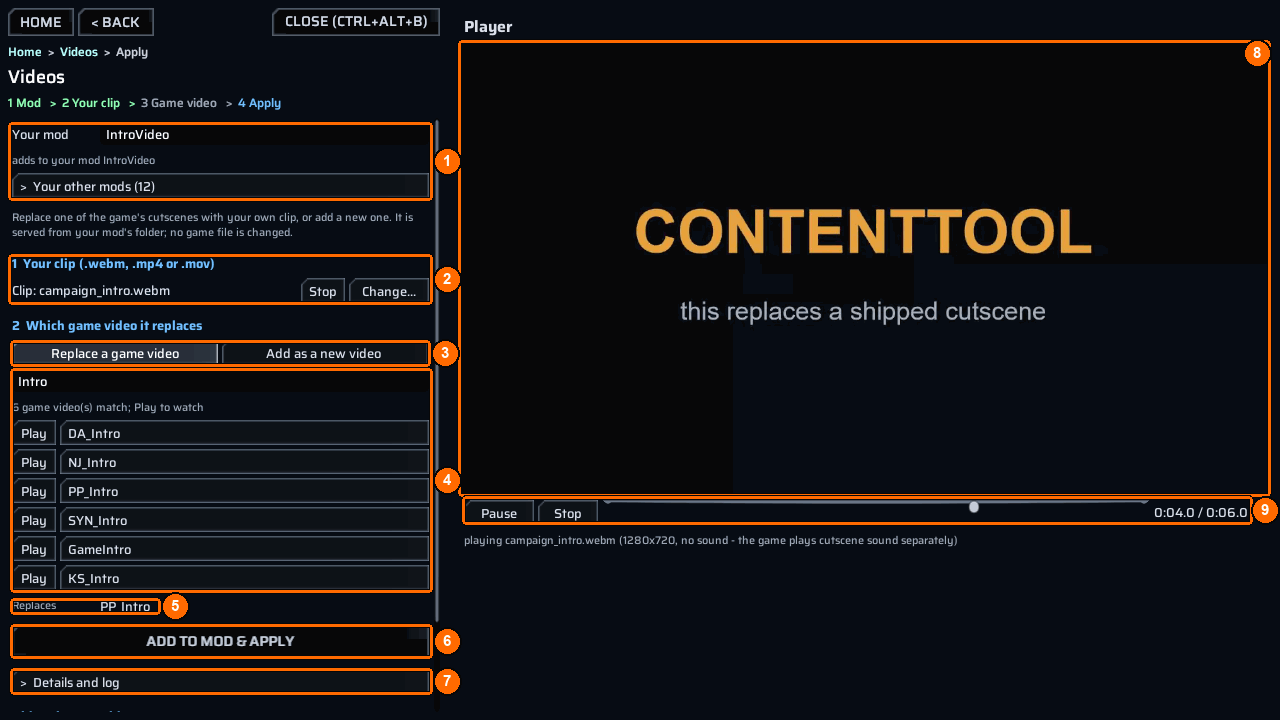
- Open the bench and choose
Videos. Type your mod’s name inYour mod(1) and pick your.webm,.mp4or.movclip (2). - Keep
Replace a game video(3), search for the shipped clip, pressPlayto watch it, and click its name to pick it (4).Replaces(5) confirms your pick. For a new clip, chooseAdd as a new video(3) instead. - Press
Add to mod & apply(6). The bench copies the clip intoContent\Videos, writes the row below for you, and serves it withct_video live.Videos in <mod>, further down the panel, showsOKfor each clip that is in place; watch it in the player (8).
Videos explains the screen in full. For Add, your mod’s code must still start the new key (step 5 below). The steps below are the console and manual way to make the same video row.
You need
- One
.webm,.mp4or.movdirectly underContent\Videos. - For Replace, a path from
ct_list videos. For Add, a behaviour DLL that starts the new clip. - Separate sound or subtitle work if the cutscene needs it; a video row changes only the video file.
Folder layout
MyVideoMod\
  meta.json
  ppcontent.json
  Content\
    Videos\
      campaign_intro.webm    <- source stem is campaign_intro
Steps
- For Replace, find the shipped clip:
Copy the path printed for the clip. asset accepts that path relative to StreamableCopiedAssets, the full catalog path, or a unique filename. A whole-segment tail of the catalog path also matches; ambiguous tails are refused. To inspect a shipped clip, run ct_extract video PP_Intro and look under <persistentDataPath>\ContentTool\Extracted\videos.
-
Put one file named
campaign_intro.webmdirectly inContent\Videos. Keep only one supported file per stem. -
Create
meta.json:
{
  "ID": "example.myvideomod",
  "AssemblyName": "",
  "Version": "1.0.0",
  "Name": [{ "Key": "English", "Value": "My video mod" }],
  "Dependencies": ["com.morgott.ContentTool"]
}
Set AssemblyName to your DLL filename if this mod needs its own trigger or def edit.
- Create
ppcontent.json. To replace the shipped clip, give the row anasset:
{
  "id": "example.myvideomod",
  "bundle": "MyVideoMod.bundle",
  "replace": [
    {
      "video": "campaign_intro",
      "asset": "StreamableCopiedAssets/Videos/Factions/Phoenix/PP_Intro.webm"
    }
  ]
}
To add a clip instead, use { "video": "campaign_intro" } as the row and omit asset. The added RuntimeKey is stable: lower-case MD5 hex of "<id>/<stem>", where <stem> is the clip's filename stem in lower case.
- Validate, serve and inspect the row in the game console:
Enabling the packaged mod also serves its rows, Replace and Add alike. ct_video live refreshes it while you author. ct_video status reports how many content projects currently serve clips in memory. For Add, take the RuntimeKey from the live output and use it in the code that starts your clip.
- Package after validation passes:
Check it worked
A valid Replace row reports:
video 'StreamableCopiedAssets/Videos/Factions/Phoenix/PP_Intro.webm' <- campaign_intro - serve it with: ct_video live MyVideoMod
ct_project: ALL PASS - nothing needed patching: none of this project's 1 replacement(s) names a shipped bundle, so no copy was written - the video row(s) above are served live by ct_video
An Add row reports video ADD 'campaign_intro' (its RuntimeKey is printed by the command) - serve it with: ct_video live MyVideoMod. The live output shows the key, its before and after paths, and a registered or QUEUED result. Play the relevant scene to check the clip itself.
Only one owner serves a RuntimeKey at a time. If two mods claim it, the lower ordinal mod ID serves it; the other clip is QUEUED and takes over if that owner lets go.
Common errors
| What you see | Why | Fix |
|---|---|---|
VIDEO FAIL 'campaign_intro' is not a .webm/.mp4/.mov under Content\Videos\ - ct_video would skip this row |
The source stem has no supported clip in the folder. | Move or rename one clip, then run ct_project again. |
VIDEO FAIL '<asset>' <- campaign_intro: no catalog row names '<asset>' - ct_video would skip this row |
The Replace path matches no catalog row. | Copy a path from ct_list videos. |
VIDEO FAIL '<asset>' <- campaign_intro: '<asset>' is ambiguous, <n> rows match: |
More than one shipped row matches. | Use the full catalog path printed with the failure. |
SOURCE SKIPPED: Content\Videos\ holds two files with the same name: <files> |
Two extensions share one stem. | Keep one clip per stem and validate again. |
REFUSED: the "video" row '<stem>' names no .webm/.mp4/.mov under Content\Videos\ or REFUSED: the "video" row '<stem>' is answered by <a> and <b> |
Packaging found a missing clip or same-stem pair. | Correct the folder and package again. |
See messages for the remaining diagnostics.
Example
IntroVideo replaces a shipped catalog row. QuitCutscene adds a clip and supplies its trigger.