Replace a mesh
Replace the geometry of a shipped Unity Mesh. A static prop or weapon can use OBJ or GLB. A rigged character needs a GLB with an armature and weights compatible with the shipped skeleton.
The quick way: the bench
For a .glb that replaces a soldier or creature part, the bench checks the bones and builds the mod for you.
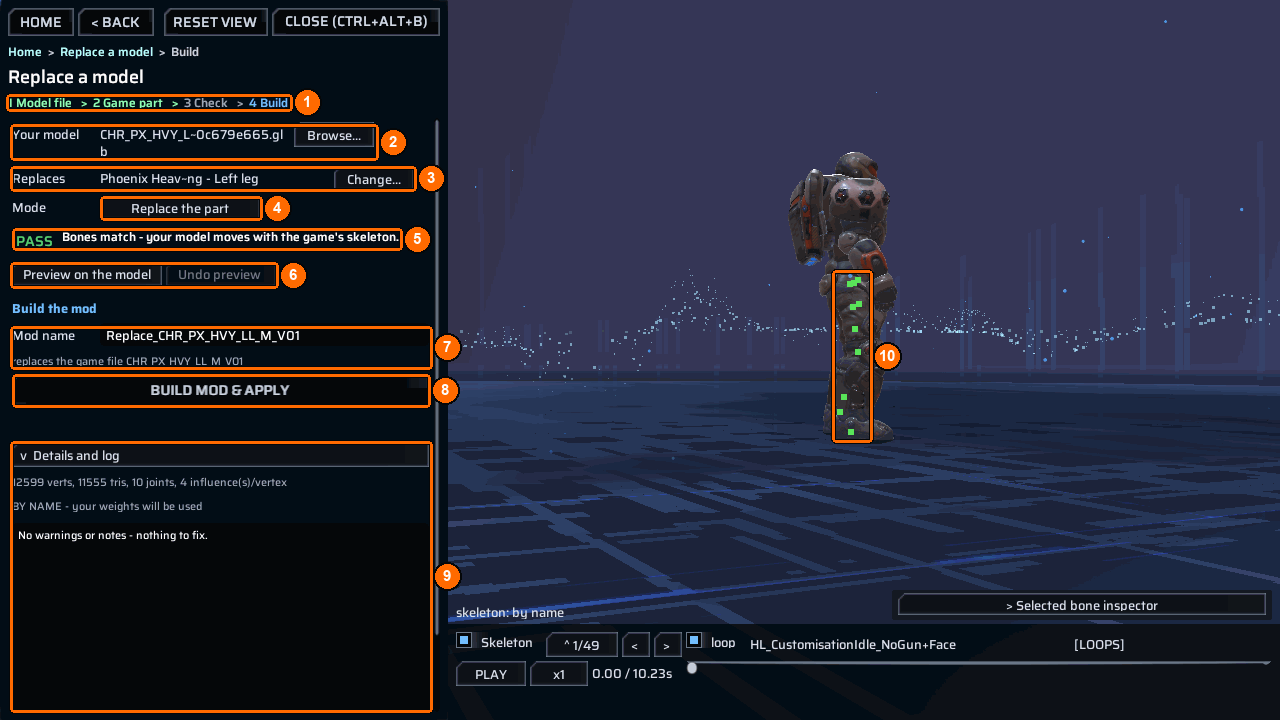
- Open the bench and choose
Replace a model. PressChoose your model file (.glb)..., thenChoose the game part it replaces...and find the part.Your model(2) andReplaces(3) show your picks. - Read the badge (5) and open
Details and log(9). Fix aFAILbefore building; read aWARNbefore deciding to build. - Press
Preview on the model(6) to see it on the live soldier. KeepModeonReplace the part(4), checkMod name(7), then pressBuild mod & apply(8).
Replace a model explains every badge and fix. The steps below are the console and manual way. Use them for OBJ files, static props and weapons, or a mesh you want to name directly.
You need
- An OBJ or GLB directly in
Content\Meshes. - The shipped bundle filename and exact
Meshname. - For a rigged target, skin weights and bones named for the target. Use
ct_list bonesto inspect it. - A visual check in game. ContentTool writes a tangent channel on replaced meshes (from the
.glbwhen usable, otherwise computed from the UVs), but normal-map shading on a replaced mesh is not yet verified in game; see known limitations.
OBJ has no skin. If an OBJ face omits a normal, ContentTool computes that vertex's normal; normals supplied by the file are retained. For a rigged GLB, ContentTool matches joints to shipped bones by name and uses the shipped bind poses. Pose the source on that skeleton. A Model Doctor alias sidecar can rename source bones for replacement; see Model Doctor.
Folder layout
Mods\
  MyMeshMod\
    meta.json
    ppcontent.json            <- mesh is the source stem
    Content\
      Meshes\
        rifle.glb             <- put replacement geometry directly here
Steps
- Find the shipped mesh. The list should include
WPN_PX_RG_Assault_Rifle_T01_V01.
- Optionally extract the shipped mesh as a size and shape reference. The command prints a GLB path under
<persistentDataPath>\ContentTool\Extracted.
- Make your replacement in Blender and export it as
rifle.glb. Keep the scale and origin appropriate for the shipped target. For a rigged target, first inspect its bones and export the armature and weights with the GLB:
- Create
meta.json:
{
  "ID": "example.mymeshmod",
  "Version": "1.0.0",
  "Name": [{ "Key": "English", "Value": "My mesh mod" }],
  "Dependencies": ["com.morgott.ContentTool"]
}
- Create
ppcontent.json:
{
  "id": "example.mymeshmod",
  "bundle": "MyMeshMod.bundle",
  "replace": [
    {
      "bundle": "px_equipment_assets_all.bundle",
      "asset": "WPN_PX_RG_Assault_Rifle_T01_V01",
      "mesh": "rifle"
    }
  ]
}
- Put
rifle.glbdirectly inContent\Meshes. Bake, then package afterALL PASS:
- Enable the mod and inspect the weapon in game. Check its shape, scale, material boundaries and lighting. A static GLB with several parts can keep separate material submeshes.
Check it worked
For this static target, look for:
patch px_equipment_assets_all.bundle: mesh 'WPN_PX_RG_Assault_Rifle_T01_V01' <- rifle <geometry summary> - skinned <binding result>
P4 PASS mesh 'WPN_PX_RG_Assault_Rifle_T01_V01' in the copy IS rifle -> <read-back geometry summary>
P5 VOID 'WPN_PX_RG_Assault_Rifle_T01_V01' is not rigged - <skin summary>
ct_project: ALL PASS - this project has no bundle of its own; the patched copy(ies) above are the whole output
P5 VOID is expected for a static mesh. For a rigged target, inspect the P5 and deformation checks instead.
Common errors
| What you see | Why | Fix |
|---|---|---|
P4 REFUSED 'rifle' is not a .obj or .glb under Content\Meshes\ |
The source stem was not imported. | Put one matching OBJ or GLB directly in Content\Meshes. If the line names another folder, move it from there. |
P4 REFUSED target 'WPN_PX_RG_Assault_Rifle_T01_V01' is not a Mesh in px_equipment_assets_all.bundle - <reason> - list the names it does hold with: ct_list assets px_equipment_assets_all.bundle Mesh |
The target name is missing or ambiguous. | Run the printed list command and copy the exact name. |
P4 REFUSED '<source>' -> <reason> |
A rigged target rejected an incompatible source, such as a file with no armature. | Read the full reason; bind the mesh to the target bones and export a skinned GLB. |
SOURCE SKIPPED: <file>: <reason> - SKIPPED, the project's other sources are unaffected |
The source could not be imported. This counts as a bake failure. | Correct or re-export the named file, then bake again. |
See messages for other refusals.
Example
WeaponMesh replaces a shipped rifle mesh and five textures. Its DLL handles an additional icon edit; the mesh replacement itself does not require that DLL.