The in-game bench
The bench walks you through making and testing a ContentTool mod inside the running game. The left side shows your task. The right side shows what that task needs: a live model, a sound or video player, or build progress and a log.
Open the bench
- Load or start a campaign. Wait for the geoscape to finish loading. The bench uses the squad bay, so it cannot open from the main menu.
- Enter
ct_bench openin the console, or pressCtrl+Alt+B.
ct_bench on its own toggles the bench. If opening is refused, check that a geoscape campaign has finished loading.
The bench looks like the game (its font, buttons and frames) and scales with the game window: at any resolution, in windowed, borderless or fullscreen mode, it keeps the same layout and grows or shrinks with the window height, also while you resize the window.
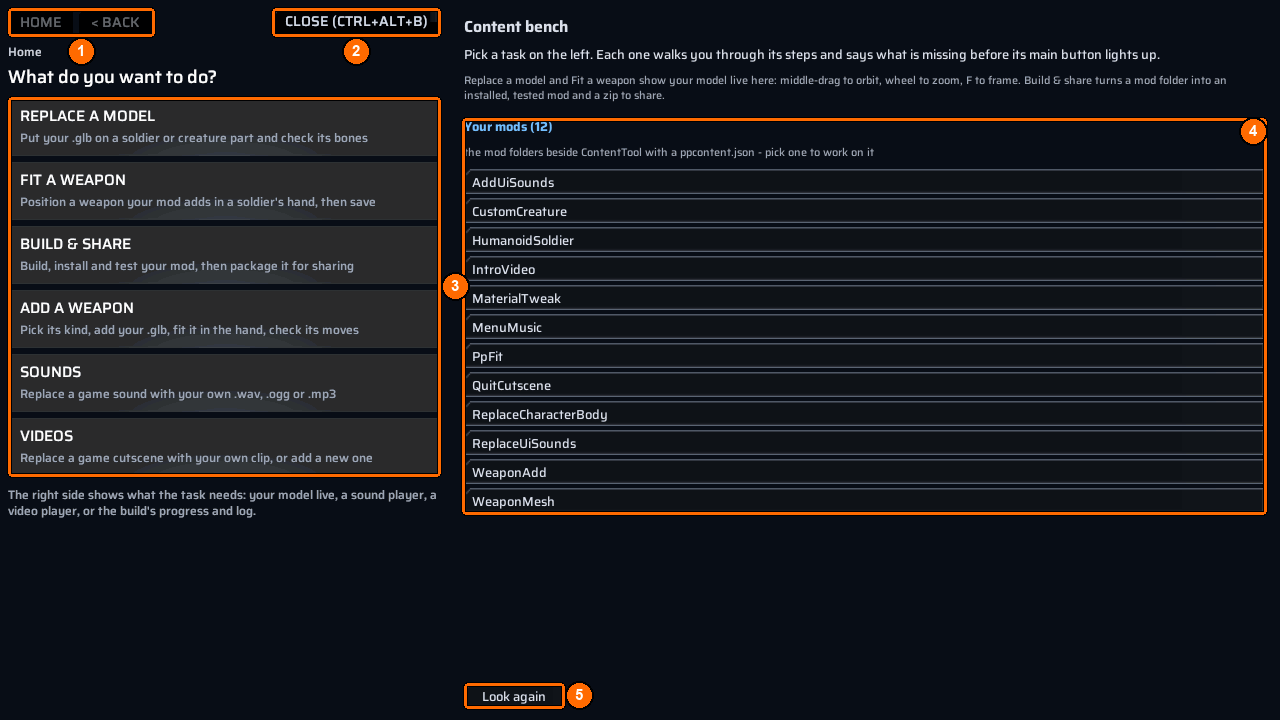
Choose a task
Choose one of the six task cards (3):
| Card | What you can do |
|---|---|
Replace a model |
Put your .glb on a soldier or creature part and check its bones. |
Fit a weapon |
Position a weapon your mod adds in a soldier’s hand, then save. |
Build & share |
Build, install and test your mod, then package it for sharing. |
Add a weapon |
Pick its kind, add your .glb, fit it in the hand, and check its moves. |
Sounds |
Replace a game sound with your own .wav, .ogg or .mp3. |
Videos |
Replace a game cutscene with your own clip, or add a new one. |
Every card opens a real screen with its own steps. Where a task also has a console route, its recipe describes both.
Pick the mod you work on
Your mods (4) lists the folders beside ContentTool that contain a ppcontent.json. Clicking one makes it the mod that Sounds, Videos and Add a weapon write into. Press Look again (5) if you created a mod folder after opening the bench.
For example, click MenuMusic in Your mods (4), then open Sounds (3) to add a replacement sound to that mod.
Move around and leave
Home and < Back (1) sit at the top of every screen. Moving around and reading logs explains them, the 3D camera and the log controls that every task shares.
To leave the bench, press Close (Ctrl+Alt+B) (2), press Ctrl+Alt+B, or enter ct_bench close.