Sounds
Use Sounds to replace a sound the game already plays with your own .wav, .ogg or .mp3. You can hear both sounds before you build. The mod ships the new sound; no game file is changed.
The step bar reads 1 Mod > 2 Your file > 3 Game sound > 4 Build.
Sounds replaces existing sounds only. To add a new sound event that your mod plays itself, follow Add a new sound.
Example: replace the main menu music
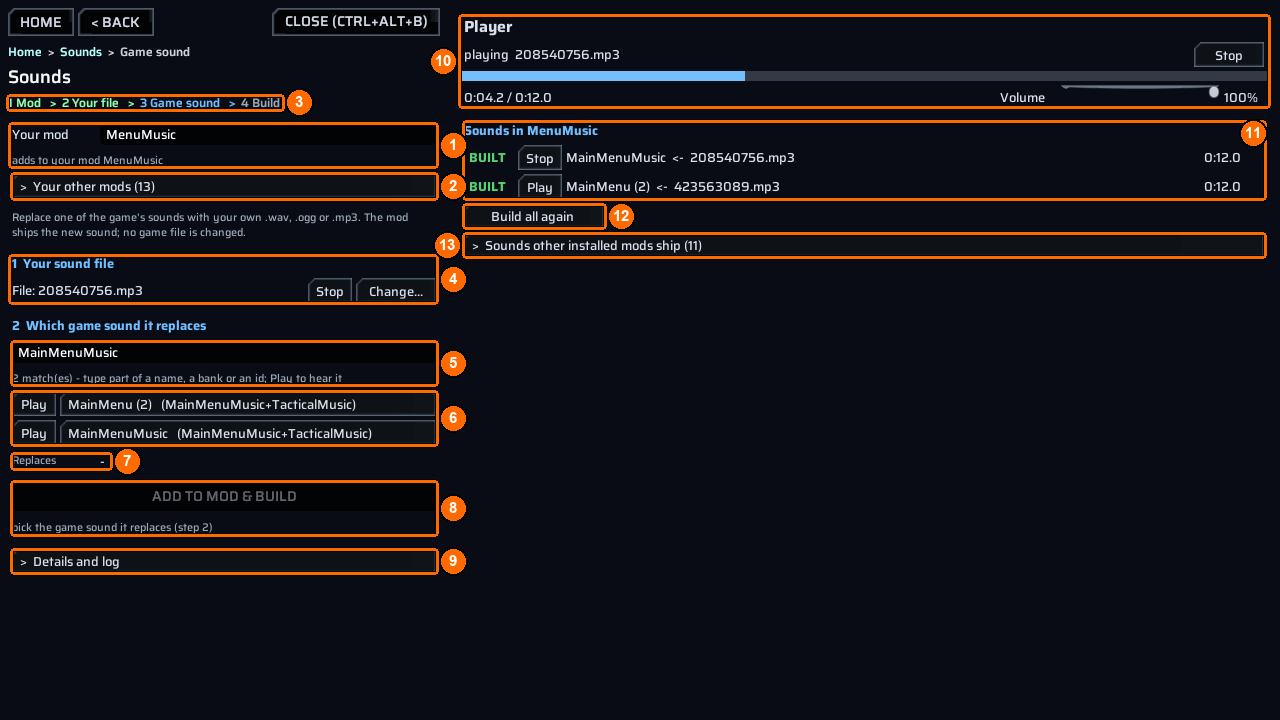
- Open the bench and choose
Sounds. - Type
MenuMusicinYour mod(1), or pick it underYour other mods(2). The hint saysadds to your mod MenuMusicfor an existing mod, or that a new one will be made. - The step bar (3) shows where you are.
- Under
1 Your sound file(4), pressPick...and choose your file (.wav,.oggor.mp3). Once picked, the button readsChange.... PressPlay(4) to hear your file. - Under
2 Which game sound it replaces, type part of a name, a bank or an ID into the search box (5), hereMainMenuMusic. The hint counts the matches. - Each match (6) shows the sound’s name and, in brackets, its bank. Press
Playbeside it to hear it. Hover the name to see its media ID. Click the name to pick it; the picked one gets a>in front. Replaces(7) shows the sound you picked.- Press
Add to mod & build(8). If it is grey, the line under it says what is missing, as in the picture:pick the game sound it replaces (step 2). The game pauses a moment while it builds. - Read the result line and, for the whole output, open
Details and log(9).
What Add to mod & build does
It copies your file to Content\Audio\Replace\<mediaId>.<ext> in the mod folder. The file name is the media ID it replaces, so no ppcontent.json row is needed. Then it runs ct_sound bake <mod> and loads the new bank.
The player
The Player (10) shows what is playing, a Stop button, a progress bar with the time (0:04.0 / 0:12.0), and a Volume slider. That slider changes only the preview’s volume, not a game setting.
What the preview can play:
- Your own file, built or not.
- A shipped sound: its loose file, decoded; or a sound embedded in a game bank, extracted; or else the game’s own event of that name. When none of these exists, the bench says
no preview for '<name>': it lives inside a game bank and no event of its own name plays it.
Keep the game window focused
The game’s sound engine pauses while its window is in the background, so a preview finishes only while the game window is focused.
Check the result
Sounds in MenuMusic (11) lists every sound the mod replaces, as <game sound> <- <your file>, with its length and a Play / Stop button. The mark in front says how far it got:
| Mark | Meaning |
|---|---|
LIVE |
Loaded in this game session. |
BUILT |
Built into its bank. |
OLD |
Your file is newer than its bank; build again. |
- |
Not built yet. |
Build all again (12) runs ct_sound bake <mod> for every sound in the mod. Sounds other installed mods ship (<n>) (13) lists what other installed mods replace, each with Play.
The result line after a build tells you what to do next:
| Result | Meaning |
|---|---|
built and loaded - play the game and listen (a later change needs a restart) |
Done. Play the game and listen. |
built - <n> sound(s) are not loaded yet: restart the game to hear them (a sound loaded once this session cannot be swapped live) |
Restart the game with the mod enabled. |
<n> sound(s) could not be loaded - see Details |
Built, but loading failed; read Details and log. |
the build refused something - see Details |
Open Details and log and read the REFUSED line. |
For the console route and the refusal messages, see Replace a shipped sound.