Replace a model
Use Replace a model (also called the Model Doctor) to put your .glb on a shipped soldier or creature part. The bench checks your model against that part’s bones before you build, shows it on the live model, and then builds and installs the mod for you.
The step bar reads 1 Model file, 2 Game part, 3 Check, 4 Build.
Example: replace the Phoenix Heavy torso
1. Pick your file and the game part
- Open the bench and choose
Replace a model. - Press
Choose your model file (.glb)...and pick your torso.glbin the file browser. - Press
Choose the game part it replaces.... The picker asksWhich game part does it replace?.
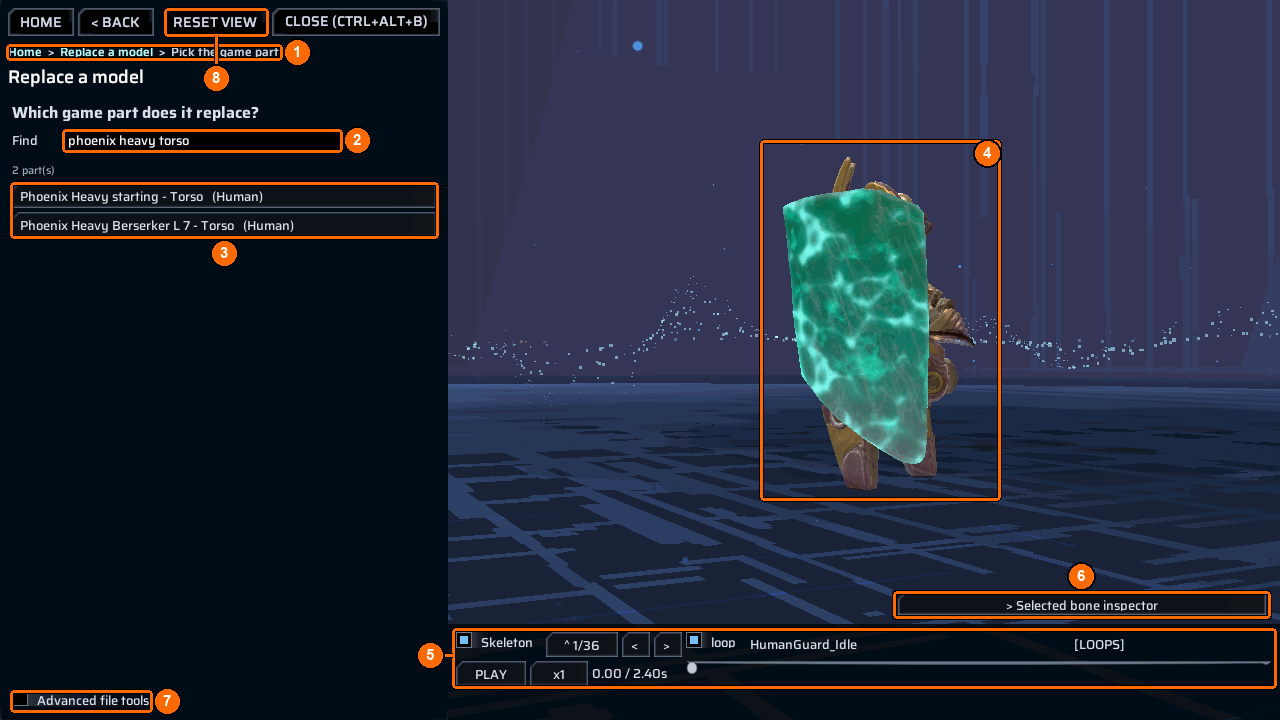
- Type
phoenix heavy torsointoFind(2). The breadcrumb (1) shows you are inPick the game part. - Click
Phoenix Heavy starting - Torso (Human)in the matches (3). To look through everything instead, openBrowse all <n> game models.
While you pick, the 3D view (4) shows the model currently loaded, and the strip under it (5) plays its animations. > Selected bone inspector (6) shows details of a bone you select. Advanced file tools (7) holds extra tools to shrink a .glb, pack it, or check its skeleton (SLIM / ZIP / SKEL). Reset view (8) puts the camera back.
2. Read the check
The check starts on its own as soon as both are picked. Wait while the panel says checking the model....
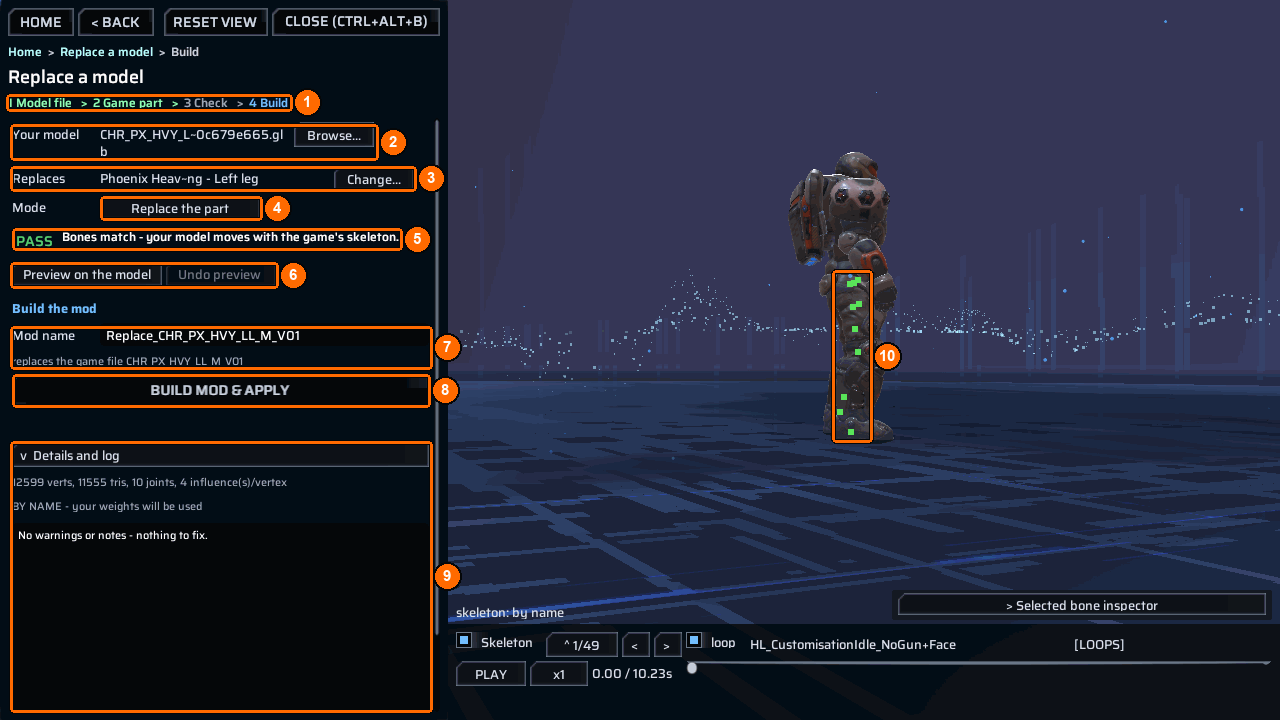
- The step bar (1) now marks
4 Build. Your model(2) shows your file;Browse...picks another.Replaces(3) shows the game part;Change...picks another.- The badge (5) gives the verdict in one sentence. Here:
PASSBones match - your model moves with the game's skeleton. Details and log(9) shows the counts (vertices, triangles, joints, influences per vertex), the binding, hereBY NAME - your weights will be used, and every warning or note. Here it saysNo warnings or notes - nothing to fix.Copy logandOpen log foldersit under it; scroll the panel down to reach them.- On the model, bone markers (10) show how your bones bind. The line in the corner of the view says
skeleton: by name.
| Badge | Meaning | What to do |
|---|---|---|
PASS |
Bones match by name. Your model moves with the game skeleton and keeps its skin weights. | Preview it and build. |
WARN |
The model builds, but the check found something you should look at. | Read the sentence and Details and log, then decide. |
FAIL |
The model cannot be used for this part yet. Build mod & apply stays grey. |
Fix what Details and log lists, then pick the file again. |
| Marker colour | Meaning |
|---|---|
| Green | The bone matched a game bone by name. |
| Yellow | The bone matched through your bone map. |
| Blue | The bone falls back to the nearest game bone. |
| Red | The bone is not matched. |
| Dim grey | An attachment point the game itself skips. |
3. Preview and build
- Keep
Mode(4) onReplace the part. Pressing it switches toAdd to the part, a different operation;Build mod & applyneedsReplace the part. - Press
Preview on the model(6) to see your mesh on the live soldier.Undo preview(6) puts the original back. A preview writes no files. - Check
Mod name(7). It starts asReplace_plus the game file name, and the hint under it saysreplaces the game file <name>. - Press
Build mod & apply(8). The bench creates or updates a mod folder beside ContentTool, copies your.glbinto it, writes the replacement row (and a saved bone map, if you made one), then builds and installs the mod.
When the build succeeds, the bench opens Build & share with that mod selected, so you can test and package it. If the result asks for a restart, restart the game with the mod enabled before you judge the replacement. A preview alone does not prove that the built replacement is installed.
If Build mod & apply is grey, the line under it says why: wait - the check is still running, pick your .glb model file first, wait - the check has not run yet, or the check found problems - fix what Details lists, then pick the file again.
When the check is not a clean PASS
Bone names do not match (WARN)
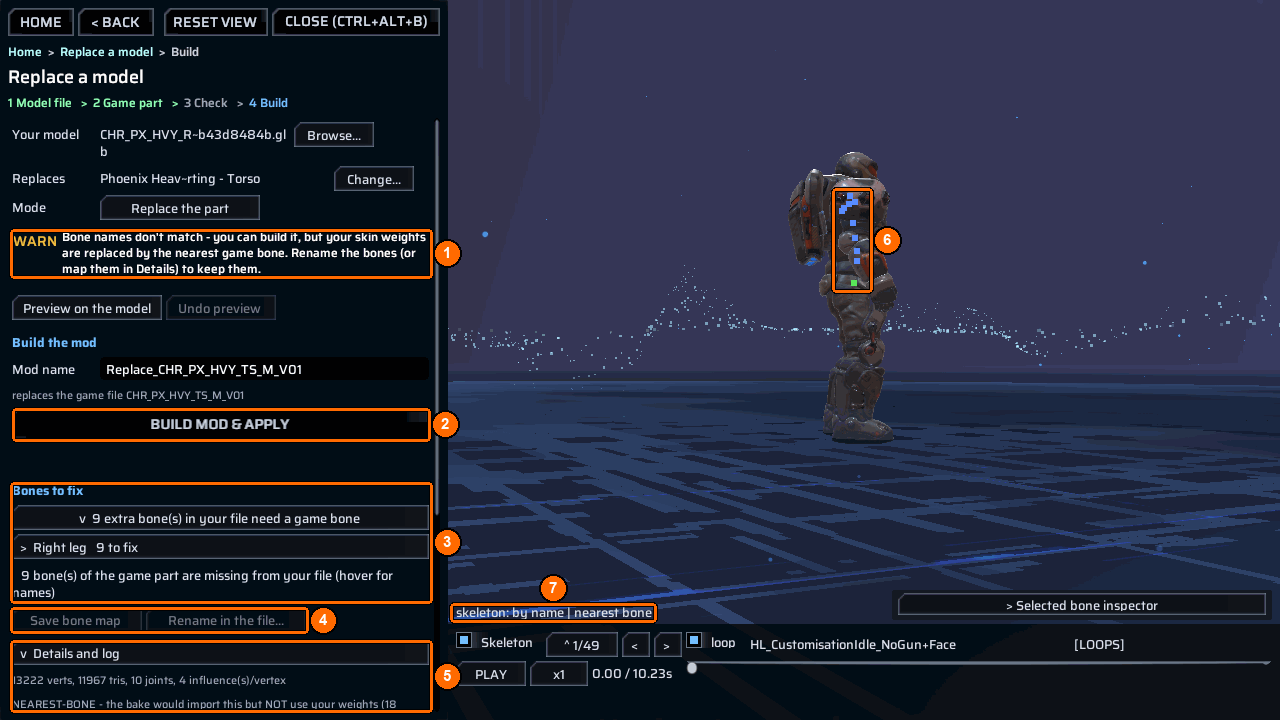
This file was made for the right leg and put on the torso. The badge (1) says Bone names don't match - you can build it, but your skin weights are replaced by the nearest game bone. Rename the bones (or map them in Details) to keep them.
Build mod & apply(2) is still available: aWARNbuilds, only aFAILblocks. But the result moves with the nearest game bones, not with your own weights.Bones to fix(3) counts the problem by body region.9 extra bone(s) in your file need a game boneopens the list; a row such asRight leg 9 to fixgroups them; the line below counts the game bones your file lacks (hover for names).- Map each extra bone to the game bone it should follow. When the mapping is valid,
Save bone map(4) saves it beside your.glb, andRename in the file...(4) writes a plan that renames the bones in the file. Both stay grey until then. Details and log(5) saysNEAREST-BONE - the bake would import this but NOT use your weightsand lists eachLOSES YOUR SKIN WEIGHTSrow.- Blue markers (6) and
skeleton: by name | nearest bone(7) show the fallback on the model.
The best fix is in Blender: rename the bones to the game part’s bone names and export again. Then pick the file again and check for PASS.
Material parts in the wrong order (WARN)
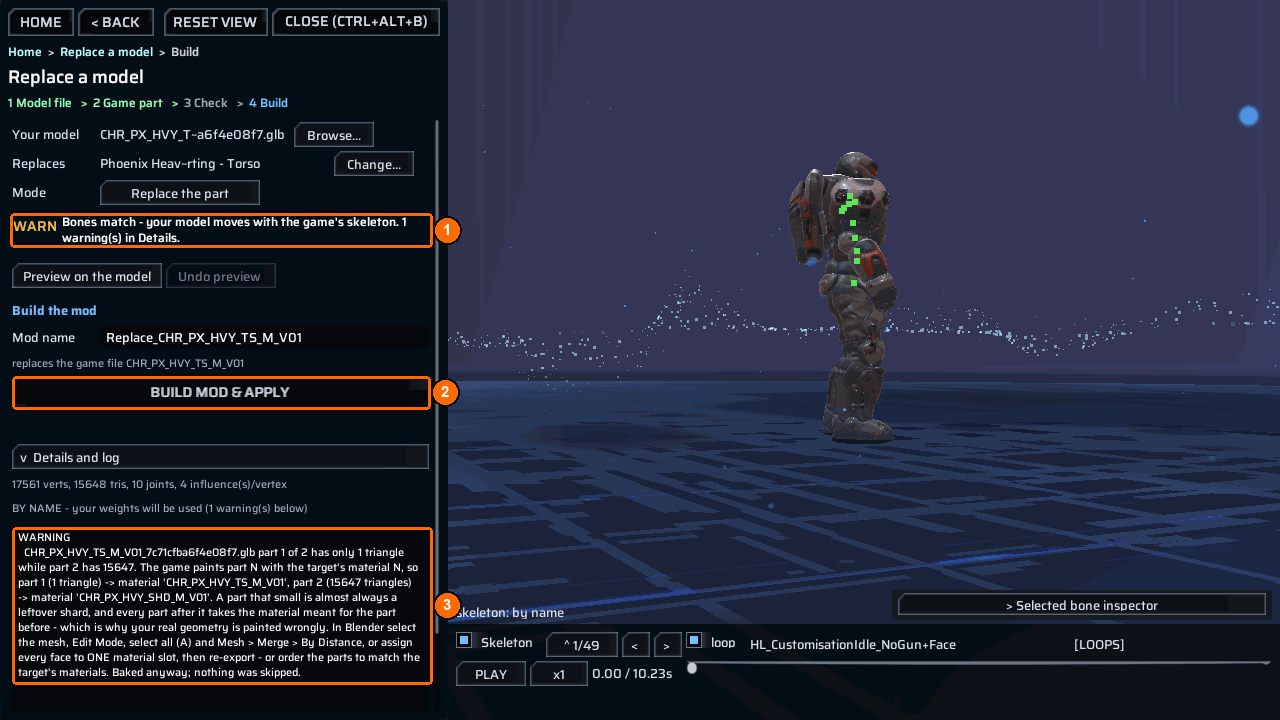
Here the bones match, but the badge (1) ends with 1 warning(s) in Details. Build mod & apply (2) stays enabled. Read WARNING rows even when the bones match: the one in Details and log (3) says part 1 of 2 has only 1 triangle. The game paints part N with the part’s material N, so a tiny leftover part shifts every later part onto the wrong material.
In Blender, select the mesh, enter Edit Mode, select all (A), then use Mesh > Merge > By Distance; or assign every face to one material slot. Export again and pick the file again. The report says Baked anyway; nothing was skipped. if you build as it is.
The model has no armature (FAIL)
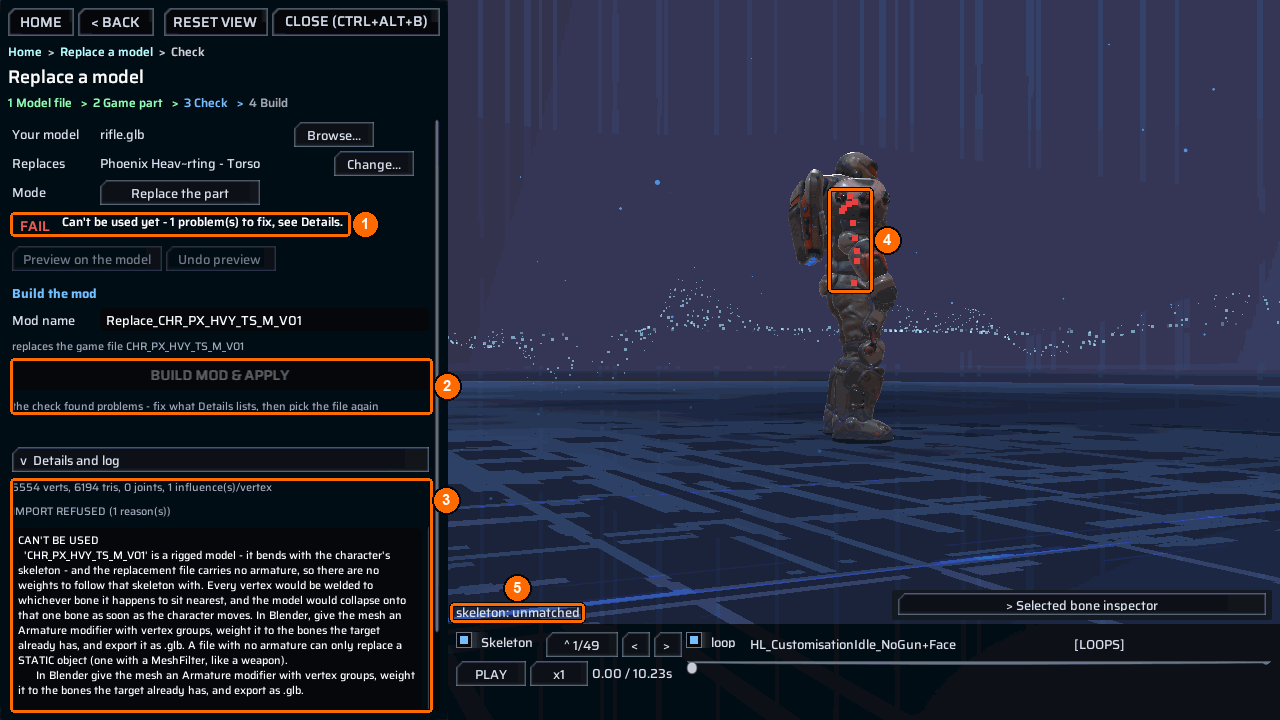
A rifle .glb with no armature was put on the rigged torso. The badge (1) says Can't be used yet - 1 problem(s) to fix, see Details. Build mod & apply is grey (2) with the reason the check found problems - fix what Details lists, then pick the file again.
Details and log (3) says IMPORT REFUSED (1 reason(s)) and explains under CAN'T BE USED: a rigged part bends with the character’s skeleton, and a file without an armature has no weights to follow it. Red markers (4) and skeleton: unmatched (5) show that nothing binds.
The fix, as the report says: in Blender, give the mesh an Armature modifier with vertex groups, weight it to the bones the target already has, and export it as .glb. A file with no armature can only replace a static object, such as a weapon.
See also
- Replace a mesh for the console route and OBJ files.
- Build & share to test and package the mod the bench built.