Moving around and reading logs
Every bench task uses the same navigation and log controls. Learn them once here.
Go back without losing your picks
- Press
Hometo return to the task cards. Your picks remain. - Press
< Backto close an open picker or file browser. With nothing open, it returns to Home.Escdoes the same as< Back; while you are typing in a field, the firstEsconly leaves the field. - The breadcrumb under the buttons, here
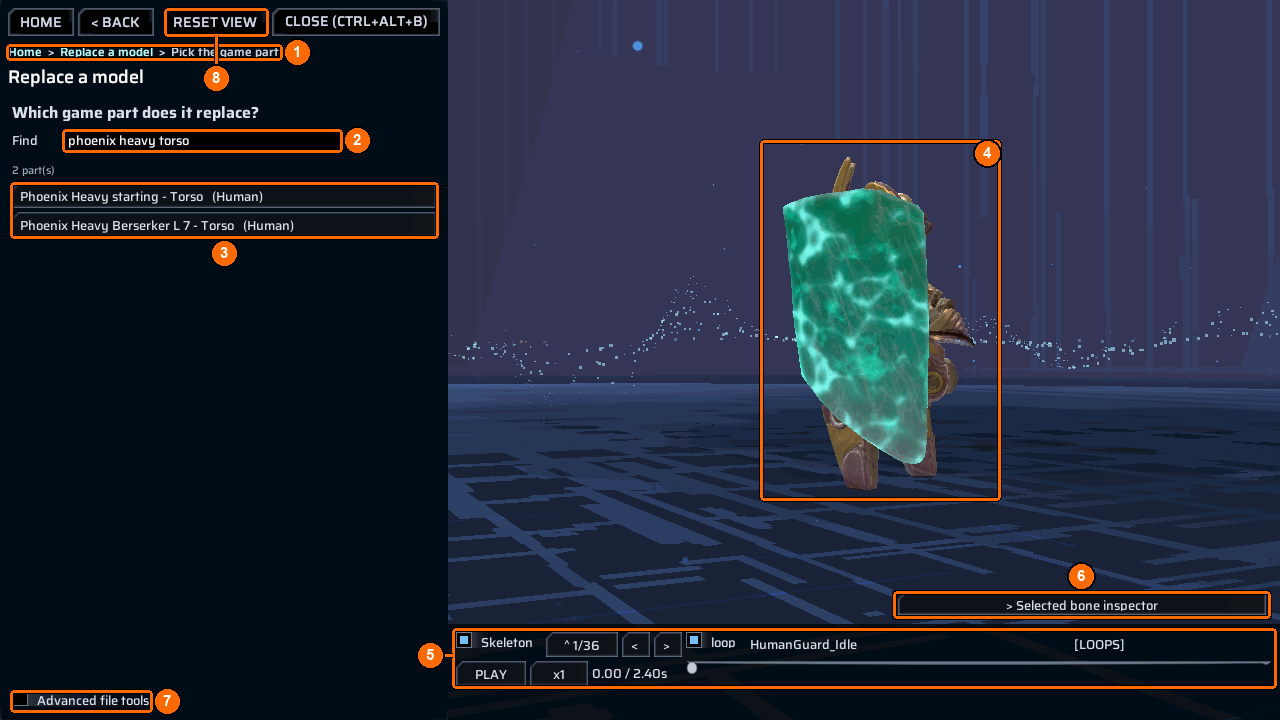
Home > Replace a model > Pick the game part(1), shows where you are. Click any part except the last (the blue ones) to return there.
A task’s step bar, such as 1 Model file > 2 Game part > 3 Check > 4 Build, shows completed steps in green and the current step in blue. Click a completed step to go back to it. Its tooltip says go back to this step - nothing you picked is lost.
For example, after choosing a model and a game part, click the completed 1 Model file step to pick another file. Your game part stays picked.
The main button and its reason line
Each task has one wide main button, such as Build mod & apply or Add to mod & build. When it is grey, read the line directly beneath it: it names the one thing the button still needs, for example pick the game sound it replaces (step 2).
Use the 3D view
Replace a model, Fit a weapon and Add a weapon show a live 3D view (4). Only these screens have Reset view (8); it returns the camera to its start, and the Home key does the same.
| Action | Control |
|---|---|
| Orbit | Middle-drag, or Alt + left-drag |
| Pan | Shift + middle-drag |
| Zoom toward the pointer | Mouse wheel |
| Frame the model | F |
| Reset the camera | Home |
| Fly | W A S D and Q / E; hold Shift to move faster |
The strip under the view (5) plays the model’s animations: Skeleton shows bone markers, the counter (^ 1/36) opens the clip list, < and > step through clips, loop repeats, PLAY / PAUSE and the speed button (x1) control playback, and the bar scrubs to a frame. [LOOPS] or [one-shot] says whether the clip itself loops.
Choose the mod a screen writes into
Sounds, Videos and Add a weapon start with a Your mod field. The line under it tells you what will happen:
| Line | Meaning |
|---|---|
adds to your mod <Name> |
The folder exists; the screen adds to it. |
a NEW mod <Name> will be made beside ContentTool |
The folder is created, with ppcontent.json and meta.json, on the first press that writes. |
type a mod name: letters, digits, '.', '_' or '-' |
The name cannot be used. |
Open Your other mods (<n>) to pick an existing mod, and press Look again to rescan the folders.
Read and share the log
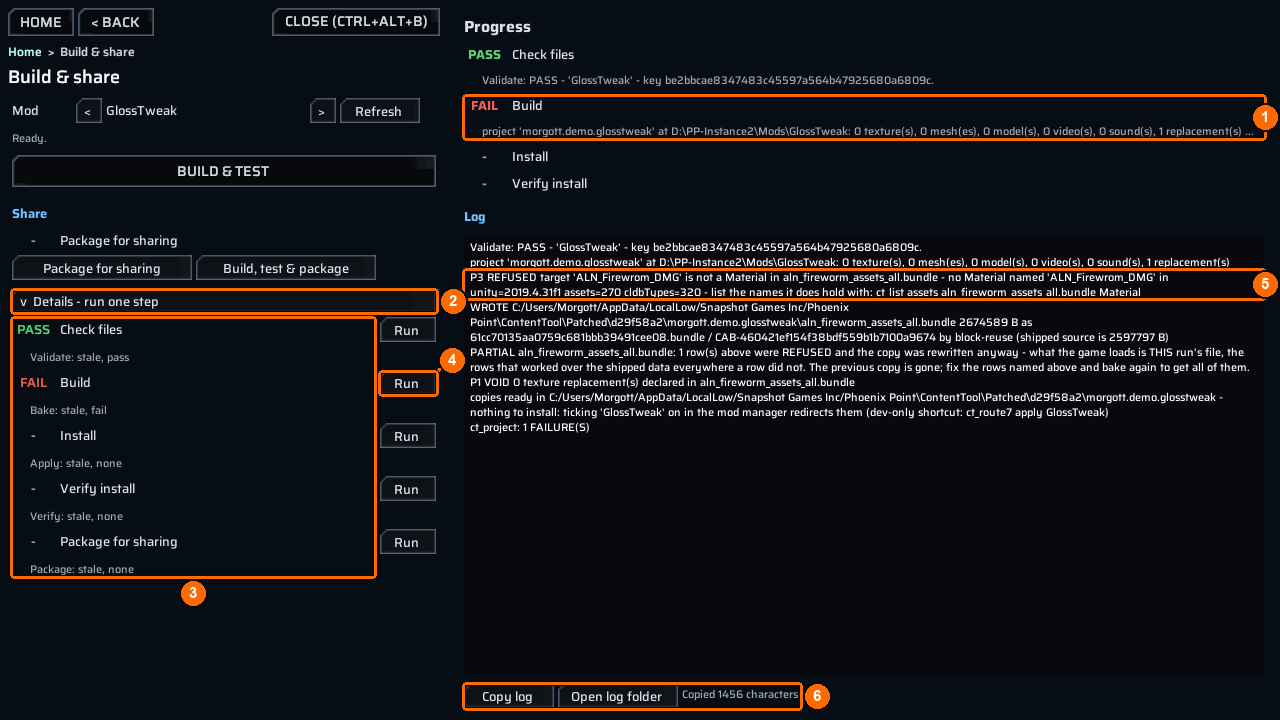
Replace a model, Sounds, Videos and Add a weapon keep their log in a Details and log fold. Build & share shows its Log on the right. The log text is selectable.
Copy log(6) puts the whole log on the clipboard, not only the visible part. The bench confirms it with a line such asCopied 1456 characters(6).Open log folder(6) opens the folder of the game’s own log file (Player.log) in Explorer, with the file selected.
When you ask someone for help, say which task, file and game target you chose, paste the copied log, and quote the line under any grey button. In the picture, the refusal line in the log (5) explains the failure; the FAIL* mark alone (1) does not.