Add a weapon
Add a weapon makes a new weapon from your .glb without writing JSON or code. The new weapon copies a shipped weapon of its kind (how it is held, fired and reloaded) and wears your model. Whatever you pick stands in the soldier’s hand on the right, so you see the result before you build.
The step bar reads 1 Class > 2 Model & name > 3 Fit in hand > 4 Check moves. Until you pick a kind, an Assault soldier holding a Phoenix assault rifle stands on the platform, playing the game's idle.
Example: make a "Test Blaster" pistol
This example uses a model file nerf.glb, the Pistol class, the weapon name Test Blaster, and a new mod named CtWpnTest.
1. Choose the kind of weapon
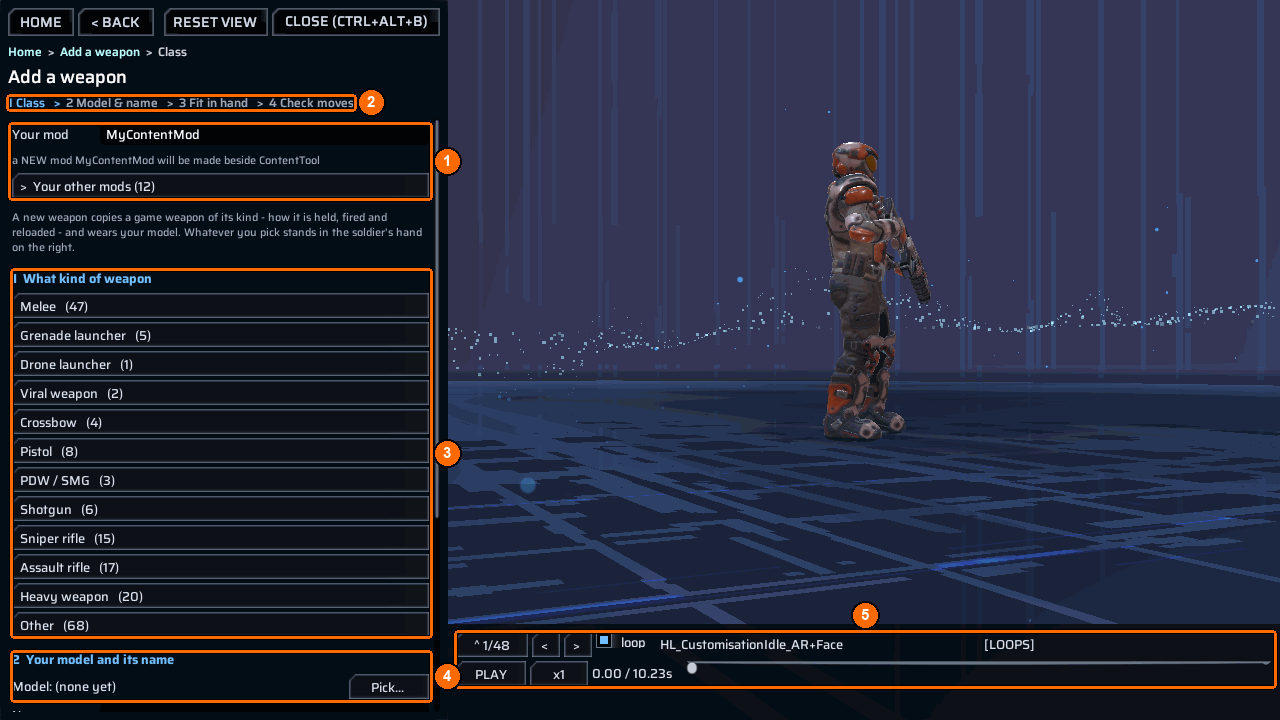
- Open the bench and choose
Add a weapon. - Type
CtWpnTestinYour mod(1). The hint saysa NEW mod CtWpnTest will be made beside ContentTool; the folder is created when you create the weapon. To add to a mod you already have, pick it underYour other mods(1). - The step bar (2) marks
1 Class. - Under
1 What kind of weapon(3), clickPistol. The list shows the kinds found in your game and how many shipped weapons each has.Otherholds grenades, creature parts and vehicle guns.
Picking a kind also picks a shipped weapon to copy (for Pistol, the Phoenix Pistol) and puts a Phoenix soldier of that kind on the platform, holding it. Step 2 (4) waits for your model. Use the strip under the soldier (5) to play that weapon’s moves before you commit.
2. Add your model and name, then create
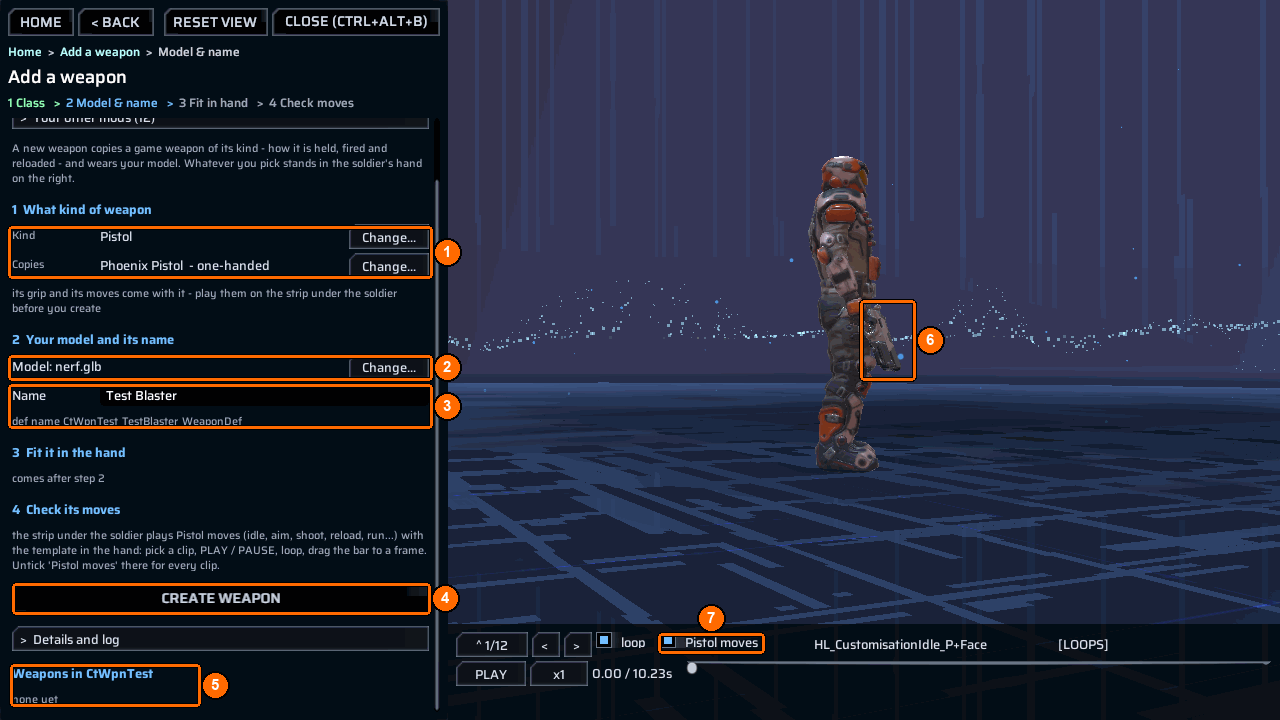
- Check
KindandCopies(1).CopiesreadsPhoenix Pistol - one-handed. Its grip and its moves come with it. PressChange...besideKindto choose another kind, or besideCopiesto search that kind’s other weapons. - Press
Pick...besideModel:and choosenerf.glbin the file browser. The row now readsModel: nerf.glb(2). - Type
Test BlasterinName(3). The hint shows the definition name the weapon will get:def name CtWpnTest_TestBlaster_WeaponDef(the mod name and weapon name, letters and digits only). A name can be 1-40 characters. - Press
Create weapon(4). The message sayscreated Test Blaster - next: Build & share, and the weapon appears underWeapons in CtWpnTest(5), which readnone yetbefore.
Until the game loads your weapon, the copied weapon stands in the hand (6). Pistol moves (7) limits the strip to this kind’s moves.
If Create weapon is grey, the line under it says what is missing: pick what kind of weapon it is (step 1), pick the game weapon it copies (step 1), pick your .glb model (step 2), or type the weapon's name (step 2).
What Create weapon writes
- Your model, copied to
Content\Models\nerf.glbin the mod folder. - A
publishrow that gives the model a new key (assetmodels/nerf). - A
weaponsrow with the def name,Test Blaster, the weapon it copies, a new GUID, the model key,"fit": "auto","count": "2"and"clips": "10". A new campaign starts with two Test Blasters and ten magazines in base storage.
You need no DLL: when a content mod with weapons rows is enabled, ContentTool builds its weapons. See Add new weapons for the rows themselves.
3. Build, enable and restart
The game loads a new weapon only when it starts, so this step leaves the bench once.
- The main button now reads
Next: Build & share. Press it. Build & share opens withCtWpnTestselected. PressBuild & testand wait for the steps to pass. - Enable
CtWpnTestin the game’sModsscreen and restart the game. - Load a campaign, open the bench and choose
Add a weaponagain. PickCtWpnTestunderYour other mods(or inYour modson the home screen). UnderWeapons in CtWpnTest,Test Blasteris now markedLOADED. Click it. - Press
Put it in the hand.
4. Fit it in the hand
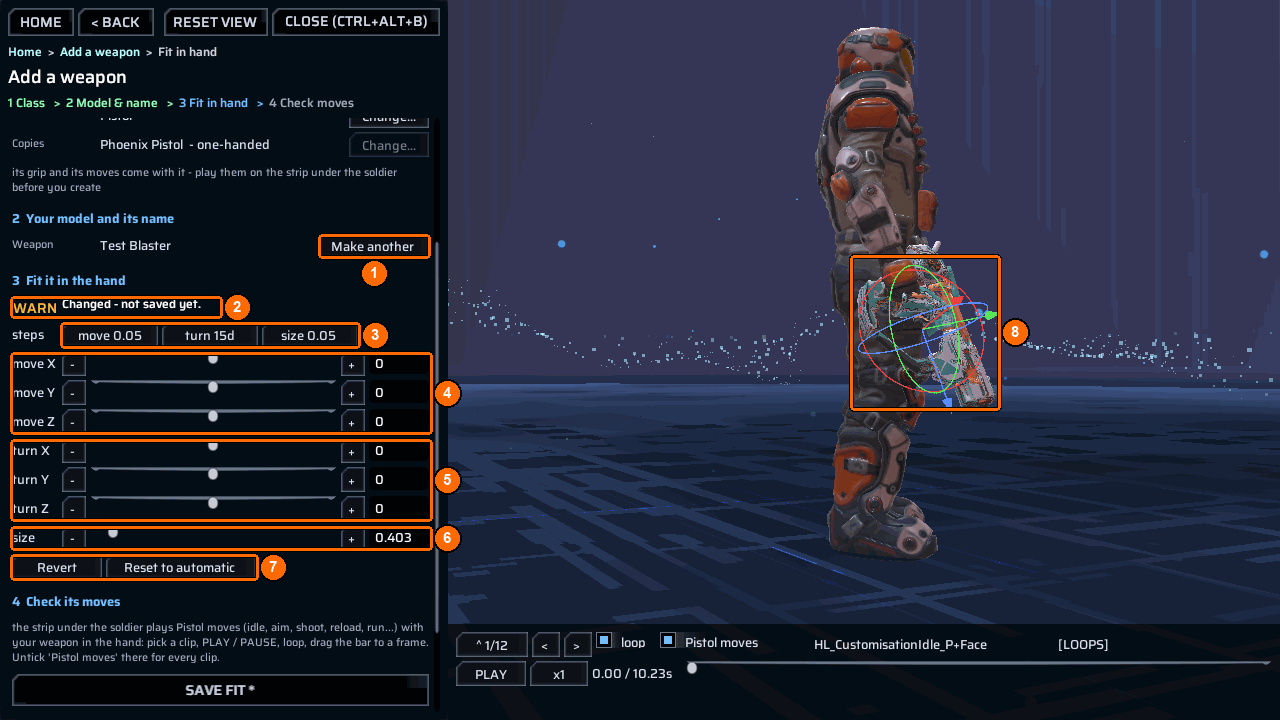
- Move the weapon with the
move X,move Yandmove Zrows (4), in metres (the slider covers -0.5 to 0.5). Turn it withturn X,turn Yandturn Z(5), in degrees (-180 to 180). Scale it withsize(6), a multiplier from 0.05 to 5; the example needed0.403. - Each row has
-and+buttons, a slider, and a box where you can type an exact number. Thestepsbuttons (3) set how far one-or+press goes: clickmove 0.05,turn 15dorsize 0.05to cycle through sizes. - You can also drag the arrows (move) and rings (turn) on the weapon itself (8).
- The badge (2) says
Changed - not saved yet.while your numbers are not in the file.Revert(7) goes back to the file;Reset to automatic(7) goes back to the measured fit. Neither touches the disk. - Scroll down and press
Save fit *. It writes the fit intoCtWpnTest’sppcontent.json.
Make another (1) starts a new weapon in the same mod.
5. Check its moves
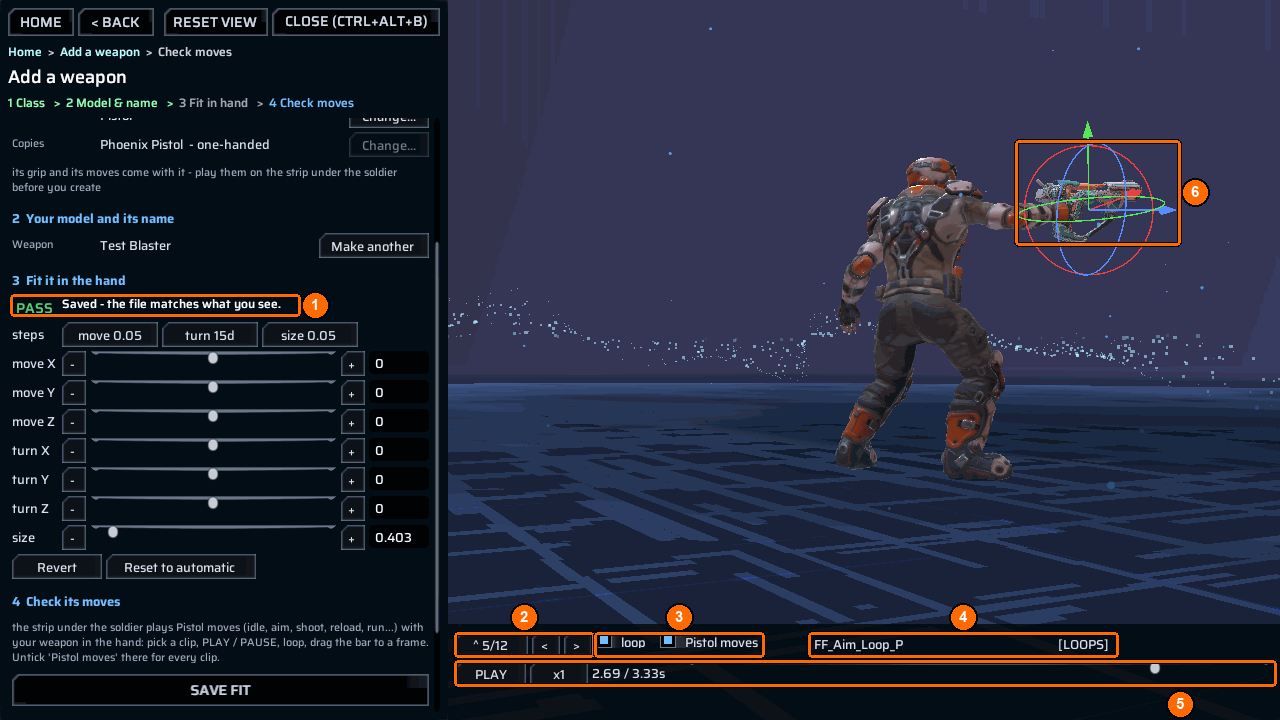
After saving, the badge says Saved - the file matches what you see. (1), and the step bar marks 4 Check moves.
- Use the clip counter and
</>(2) to choose a move; click the counter for the whole list. - Keep
Pistol movesticked (3) to list only this kind’s moves: idle, aim, shoot, reload, run and so on. Untick it to see every clip.loop(3) repeats the clip. - The clip’s name, here
FF_Aim_Loop_P, and[LOOPS]or[one-shot]show on the strip (4). - Press
PLAY/PAUSE, change the speed withx1, or drag the bar to a single frame (5). - Check that your weapon stays right in the hand (6) while the soldier aims, shoots, reloads and runs. If it does not, go back to step 4, adjust, and save again.
Start a new campaign to find the two Test Blasters in base storage.